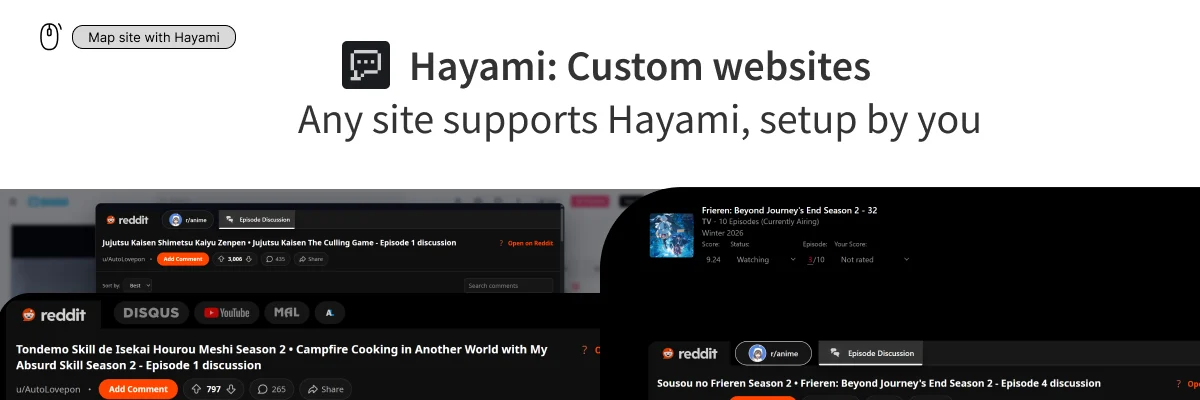
How to configure custom websites with Hayami
Right click on the website you want to map to Hayami, and click “Map this site to Hayami”. If Hayami doesn’t have permission to access the site, you may get a popup requesting this permission. If you do, click ‘Allow’.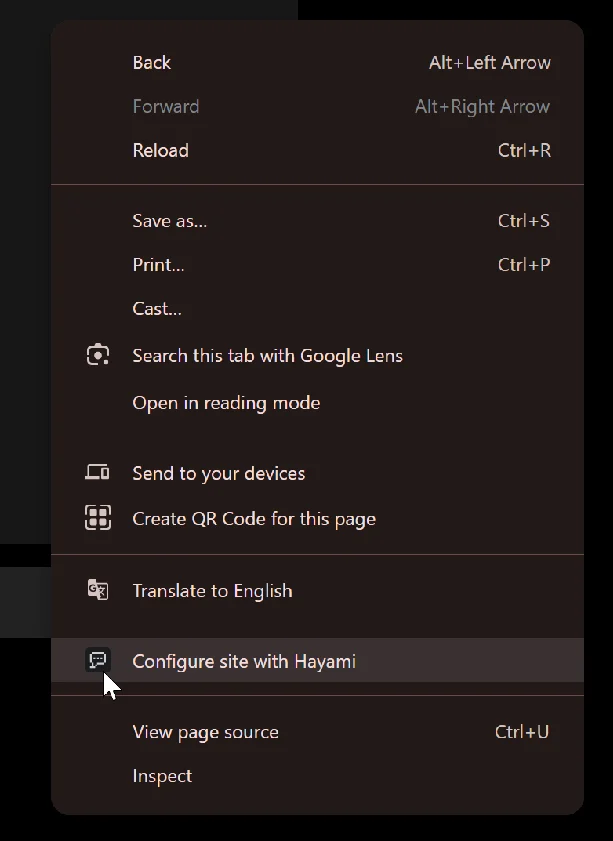
Choosing your mapping mode

- Below element
- Insert inline
- Replace element
- Popup only
- Icon/text trigger
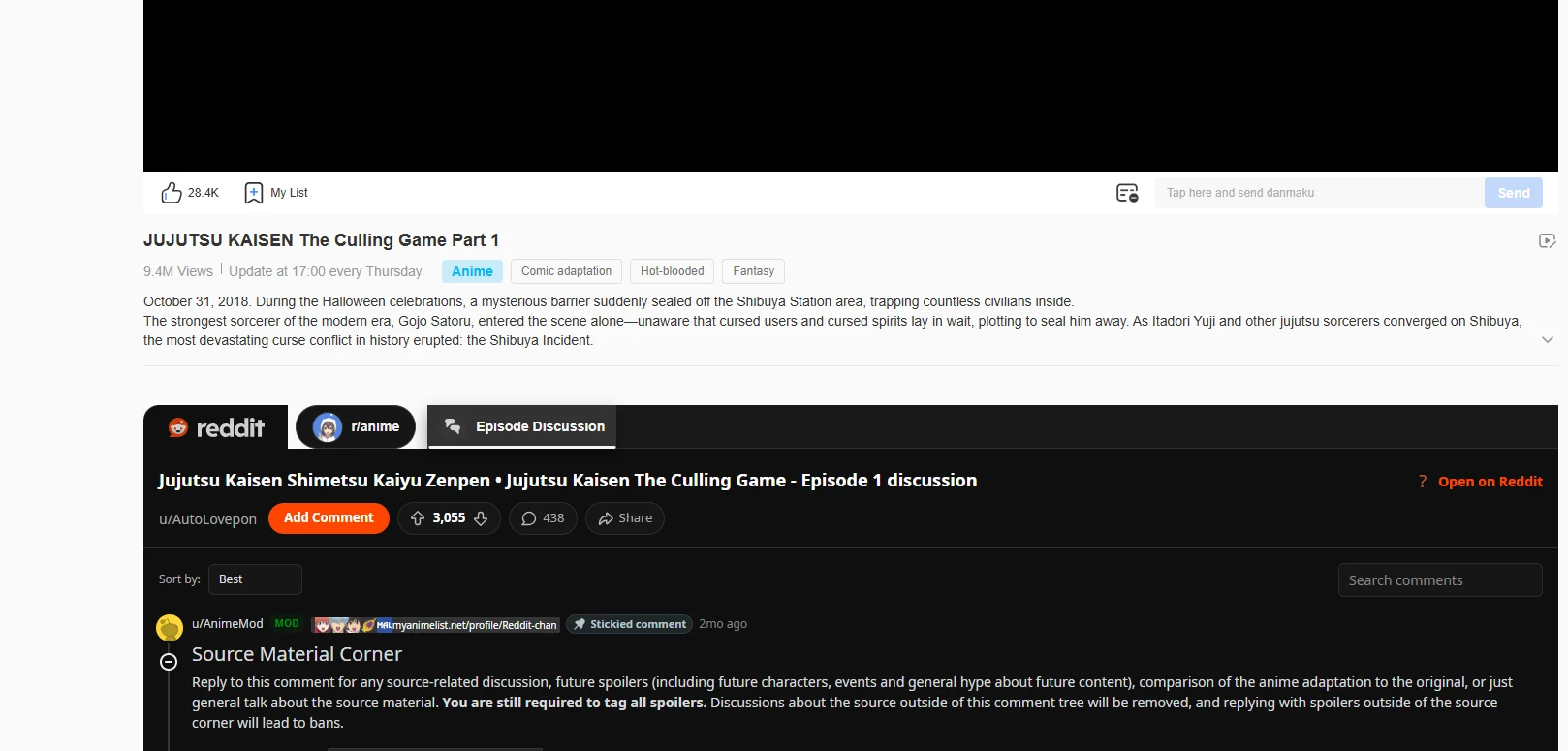
Below element: This puts the Hayami comments section below such element. You might want to put it below an existing comments section, below a title on the page, or just literally at the end of the page (HTML “body”). Choice is yours. An example is shown on below on a simulated anime platform example with just a video player with nothing on-page. There are many other use-cases this mode works effectively.

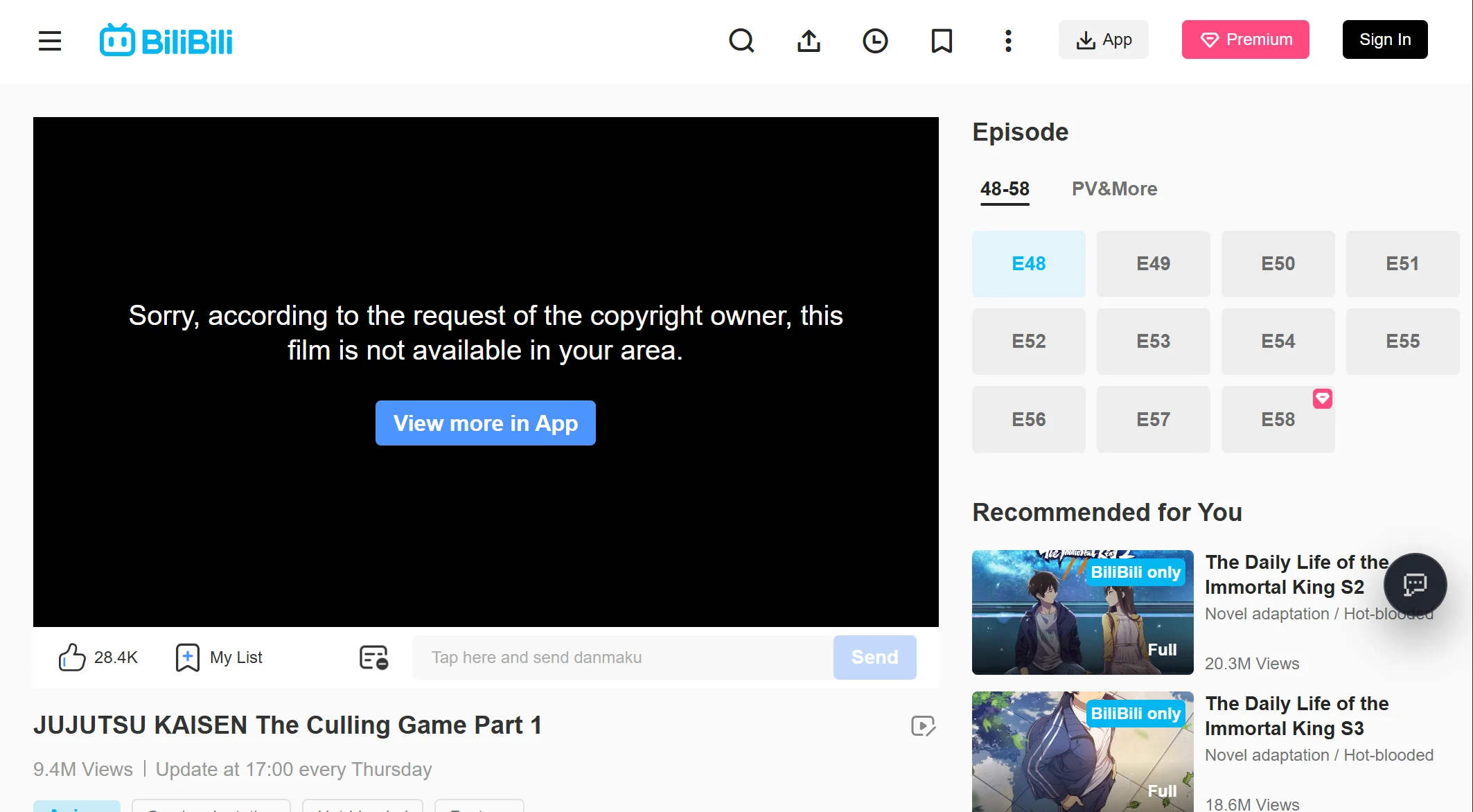
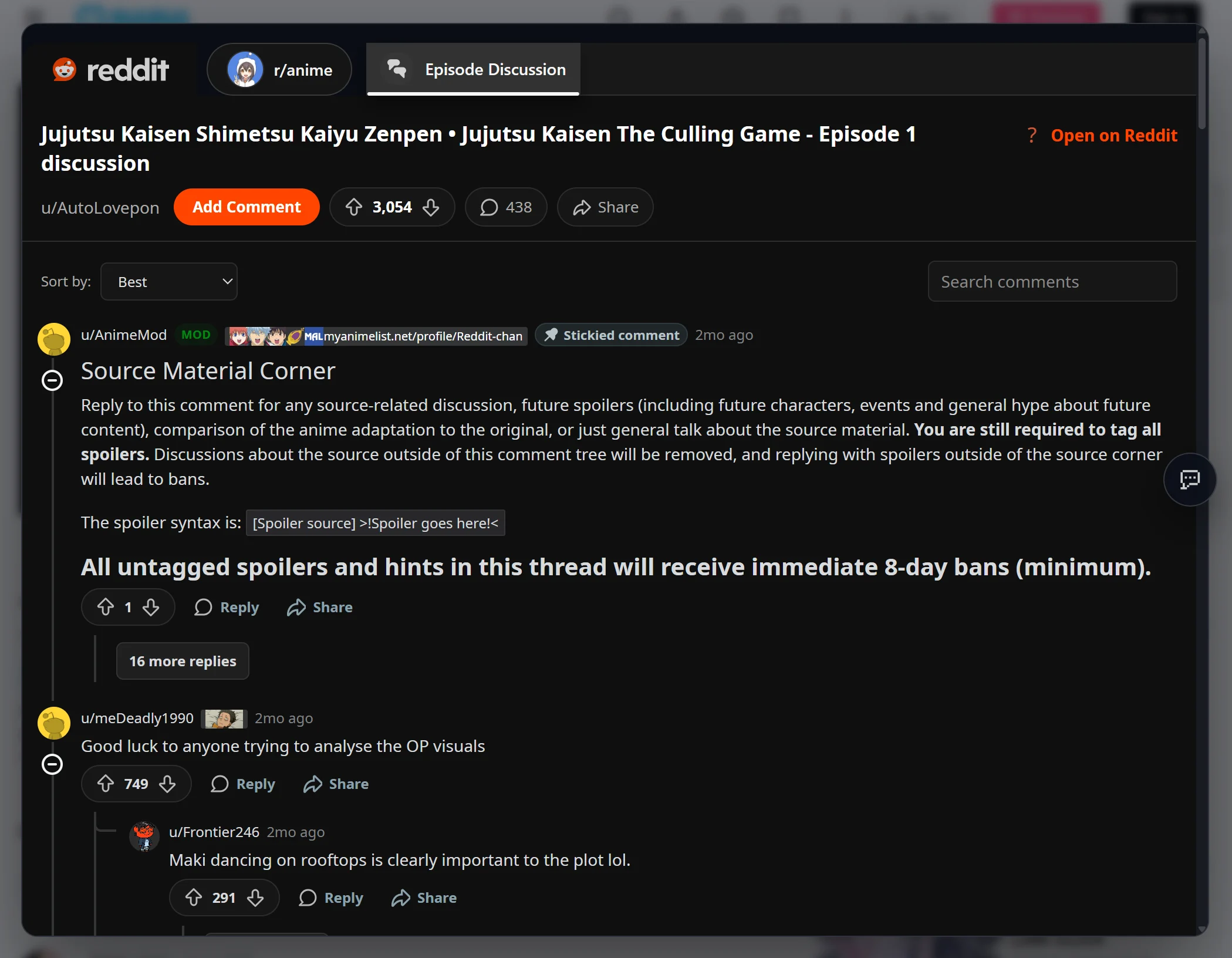
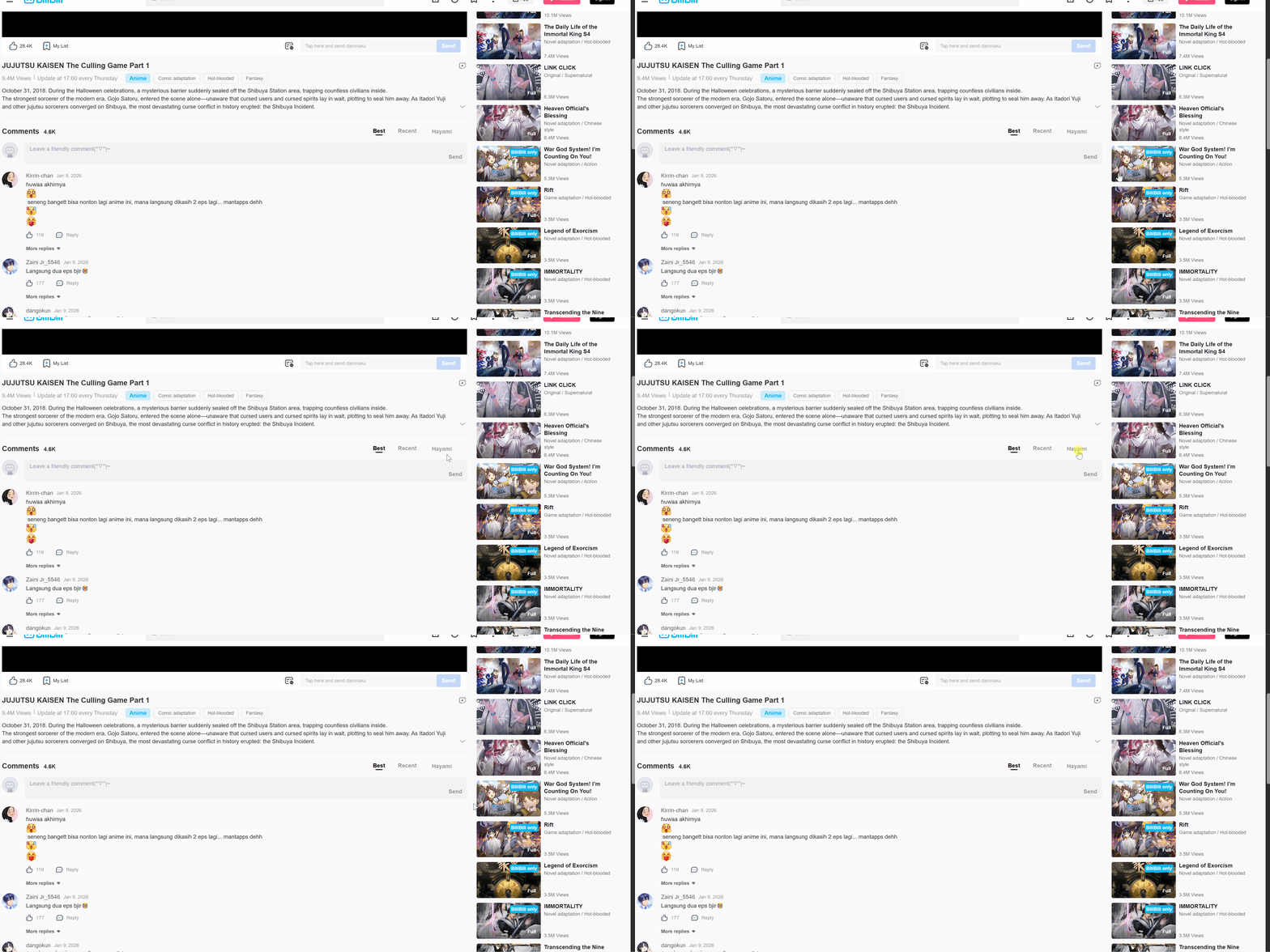
How to choose anime title and episode
Choosing the anime title and episode selector can vary by site, but Hayami should make it fairly straightforward. You can do this either via manually selecting it. Anime title selector: Click ‘Pick’ and choose the name of the anime on the site.

Setting mount selector, and side padding
For all the other modes, one last step: you need to configure the rest.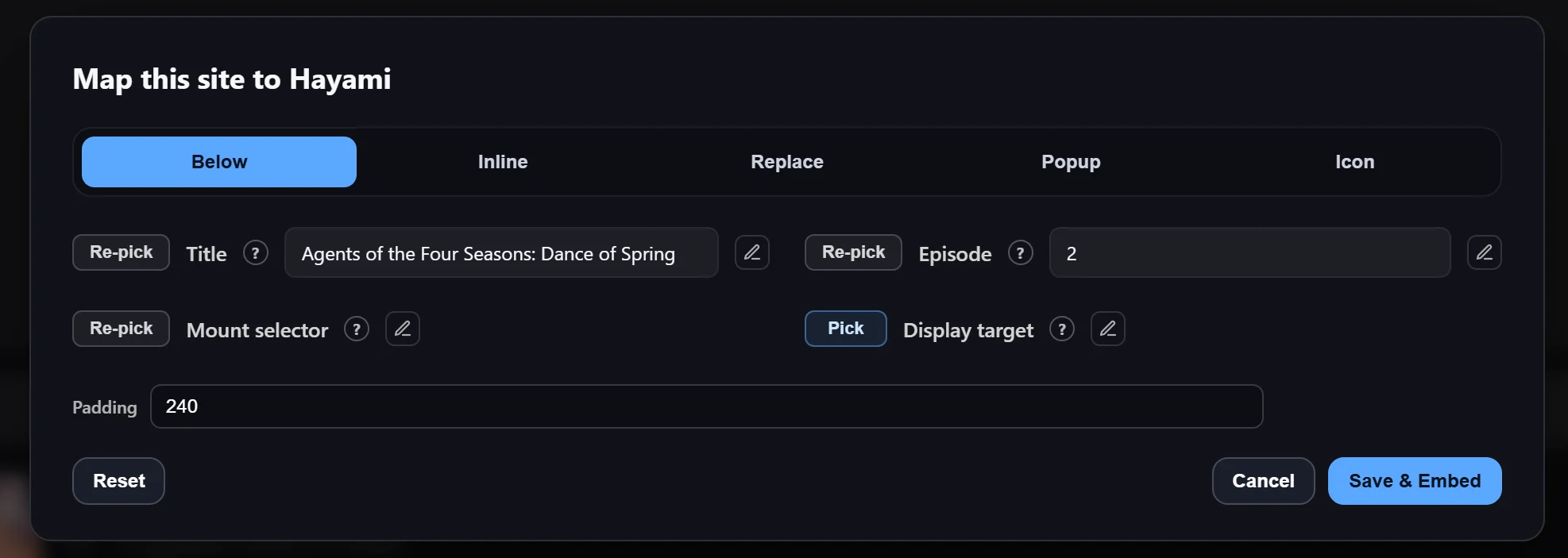
Configuring for metadata-less player site layouts
This is an advanced use-case that Hayami does support, but requires a bit of fiddling. You can read more on how to setup your site on this page >How to import & export custom website mappings
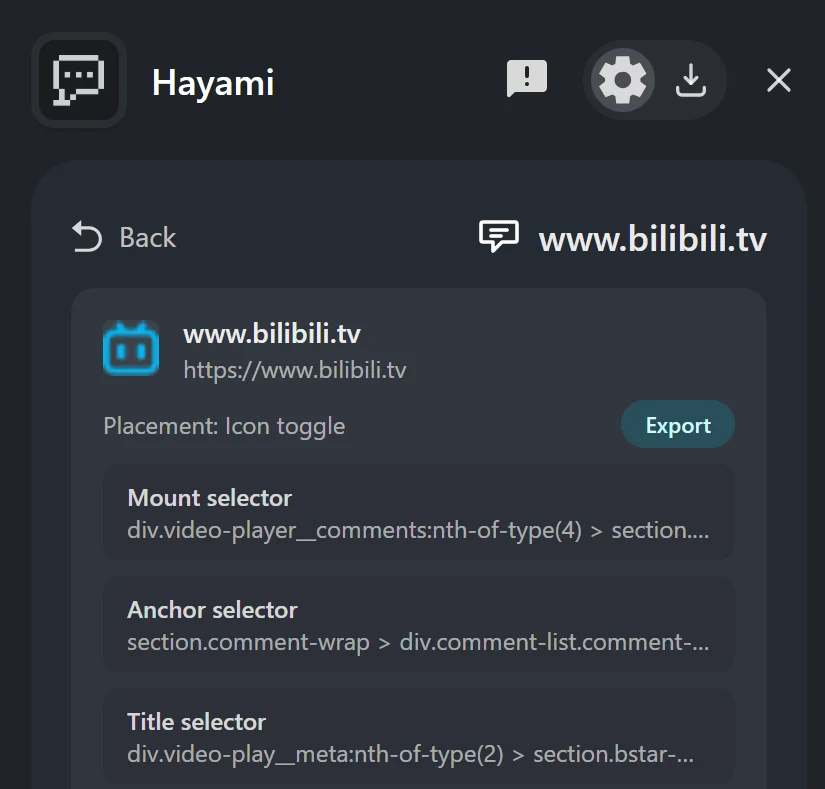
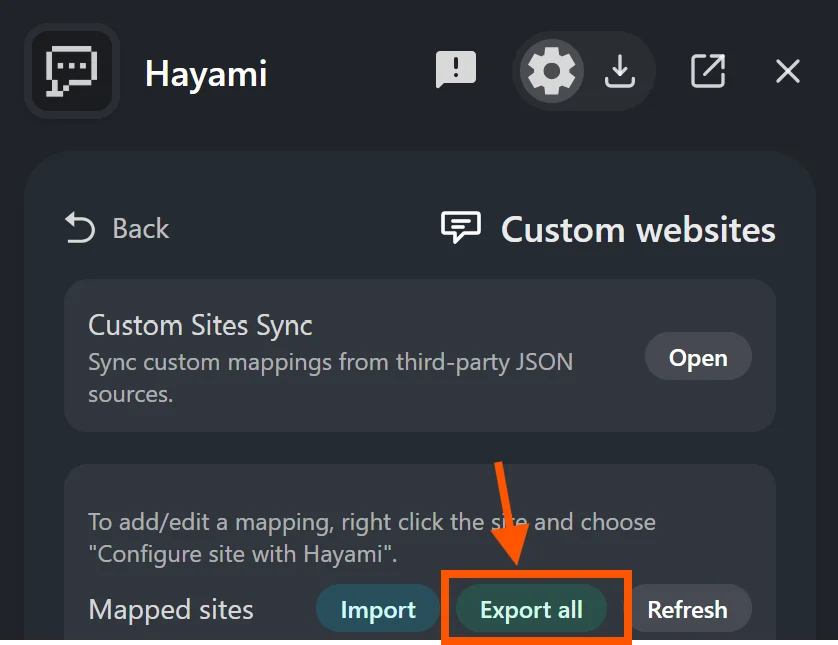
You can export individual custom site mappings by clicking on Hayami, navigating to:Settings > Custom websites > info icon on website you want to export > Export

How to sync with custom website mappings
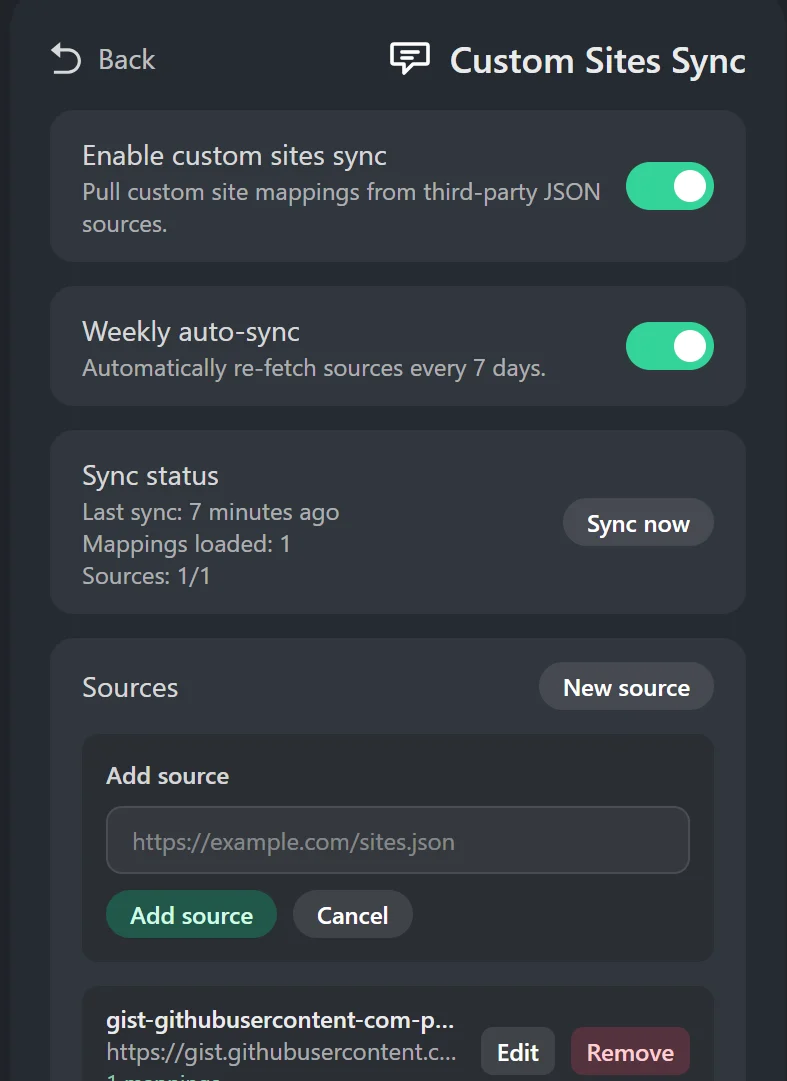
Community members who have combined multiple mappings into one may update their mappings regularly as a visitor of many sites and forums. You can import this JSON directly via the import feature, or you can keep up-to-sync all the time if you desire. If you want to sync regularly with a mapping source, you can do so by going to:Hayami settings > Custom websites > Custom Sites Sync > New source, and adding the URL to the sync location.
How to make your own custom website sync location
Automatically managed by Hayami
Hayami has GitHub Gist/GitLab Snippet auto-publishing functionality for custom sites, automatically syncing the sites you want to share. Setting it up and sharing your configurations with others is extremely easy to do.Connect GitHub/GitLab: Hayami > Settings > Custom websites > Publish Custom Sites
This screen should expose you to two possible connections: GitHub or GitLab. Choose whatever one you prefer. If unsure, I’d recommend GitHub for an easier setup experience. Connect your account, and when finished, it should show logged in and ready to go.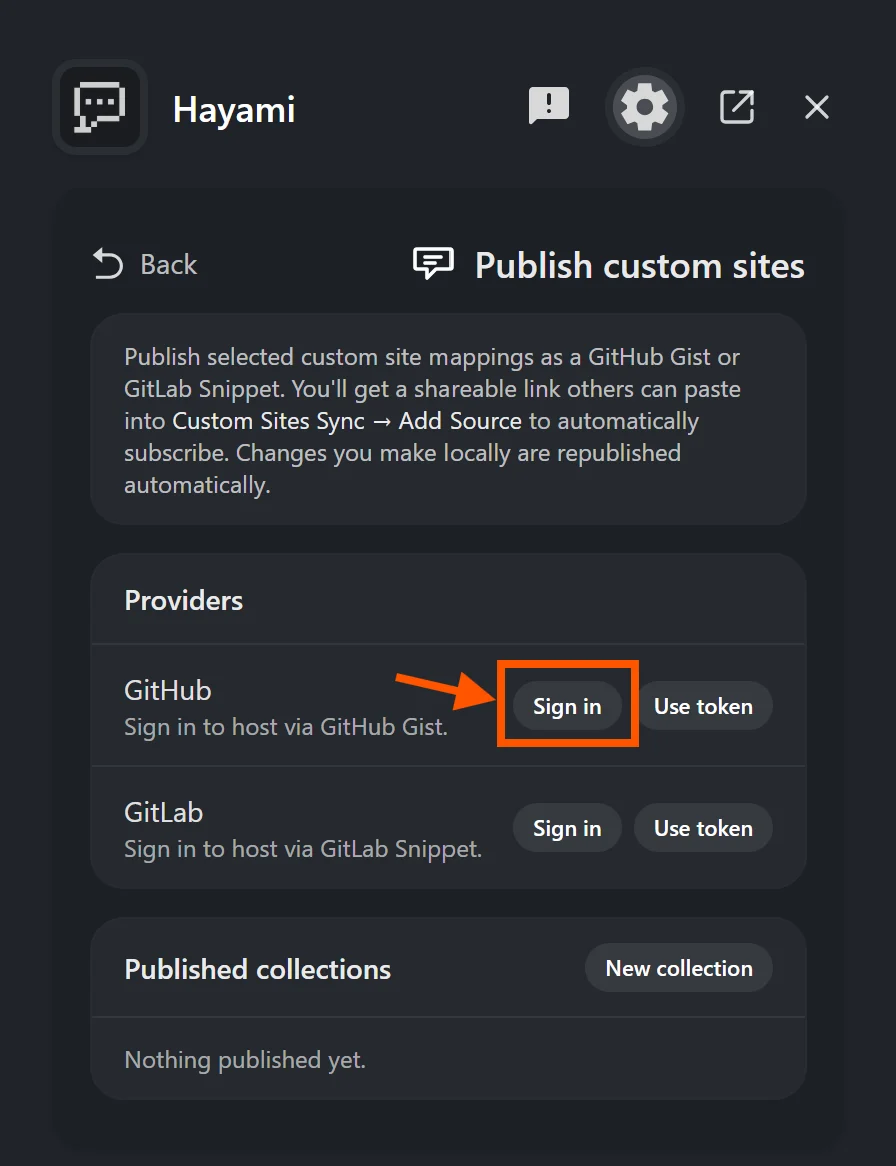
Click 'New collection', give it a name and choose what to share, then hit Publish
Give your mapping a name, and choose if you want to share all current + future mappings with others, just all current mappings, or you can individually choose and curate the collection for specific sites, if you want. When you’re done, hit Publish.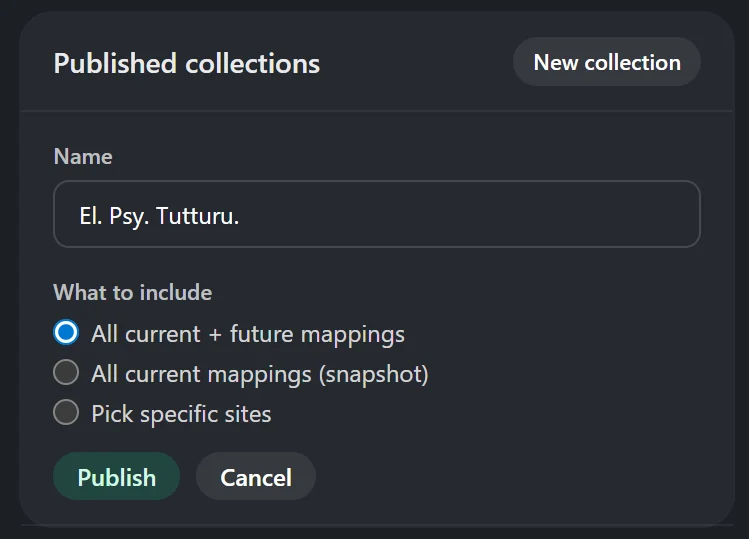
Copy that link. You can then share it with others for them to sync to.
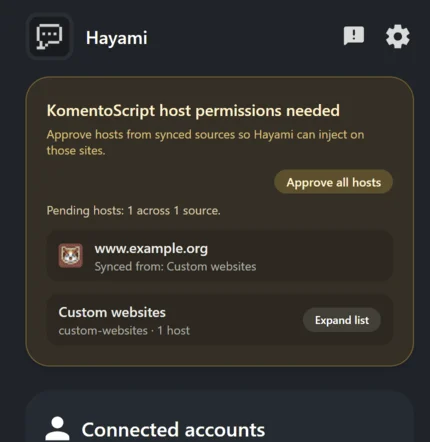
You now have a sharable link to share with others. They go to the exact same place within Hayami, but to Custom Sites Sync (not Publish Custom Sites). Whoever wants to sync to your source adds that link as a source, accepts permissions for those sites on their end, then they’re good to go.If in-future you decide to do further mappings to Hayami, there may be a delay before Hayami in the background publishes those changes. You can click ‘Republish’ manually if you want to force a publish right away.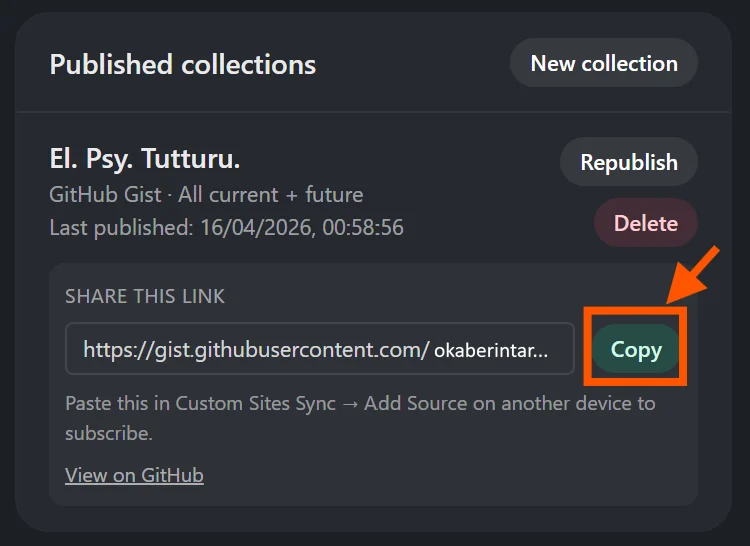
Manually managing, and uploading mappings yourself
Using the above guide on importing/exporting your custom-made Hayami mappings, you can then make your own sync to share with others in the community by doing the following:Export all the custom sites you want to export via Hayami custom websites.
Click on the info icon on each individual site, and export the sites you want to merge into one configuration intended for sync. If you intend to share all of your mappings, click ‘Export all’ to export all your mappings.
Merge all of these site mapping files into a single one using Hayami's site merger.
If you clicked ‘Export all’ and don’t plan to add any more sites, skip this step.Using Hayami’s custom site merger (https://custom-site-merger.hayami.moe/), upload all of your site mapper configurations (it’s processed locally), and export them as one config by clicking ‘Download JSON’.The importer also supports expanding mappings (e.g. if you clicked ‘Export all’, or you’ve already got exported mappings), you can import that file in-future on-top of other mappings communities have made to expand it if desired.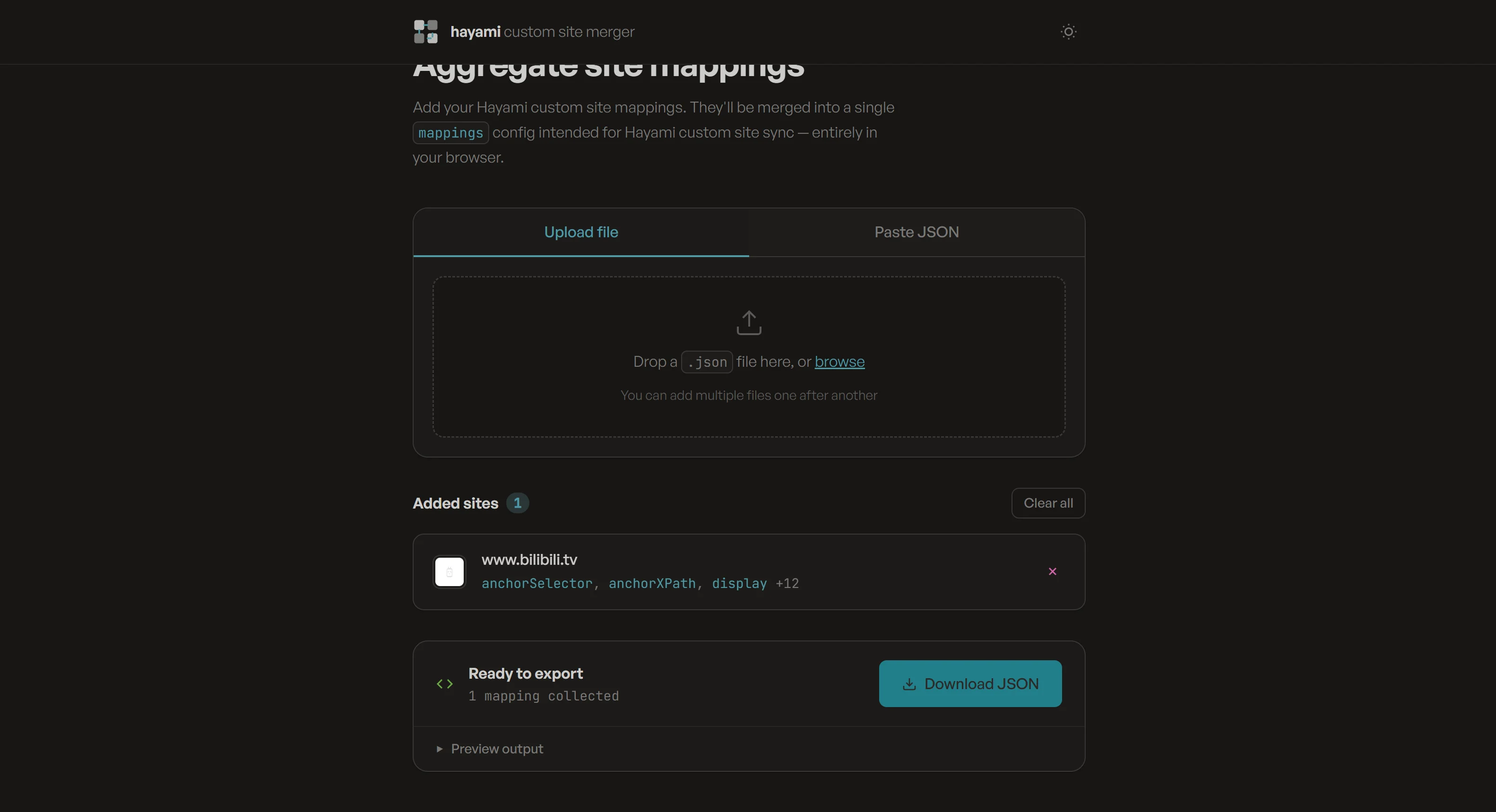
Upload this JSON to a Gist site, Pastebin, or web host - which you can edit.
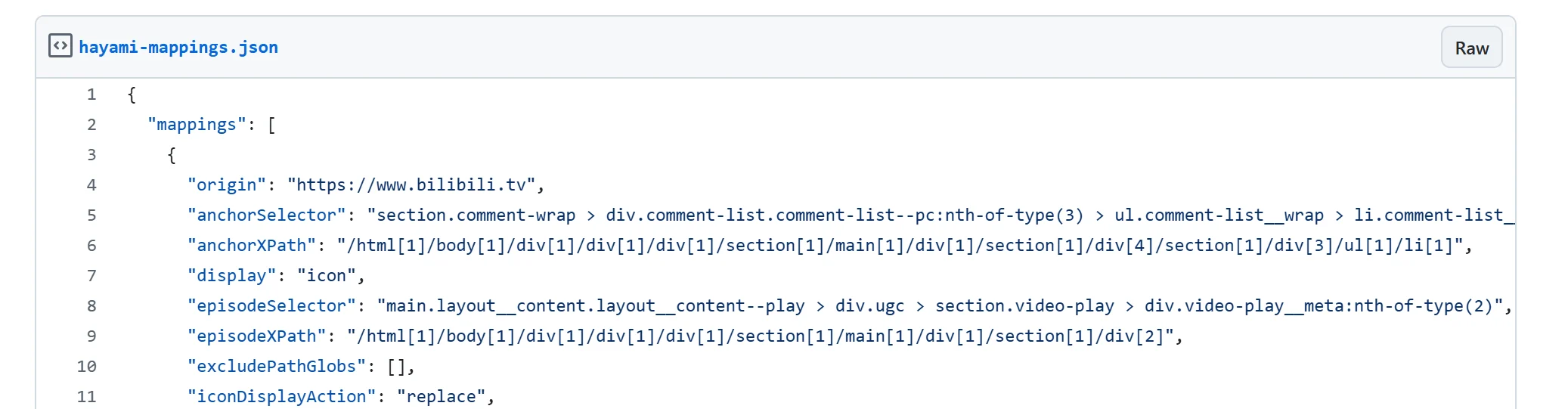
GitHub Gist (https://gist.github.com/) will be used in the following example. Drag to import your exported JSON directly into GitHub Gist, or open up your JSON and just copy and paste it directly.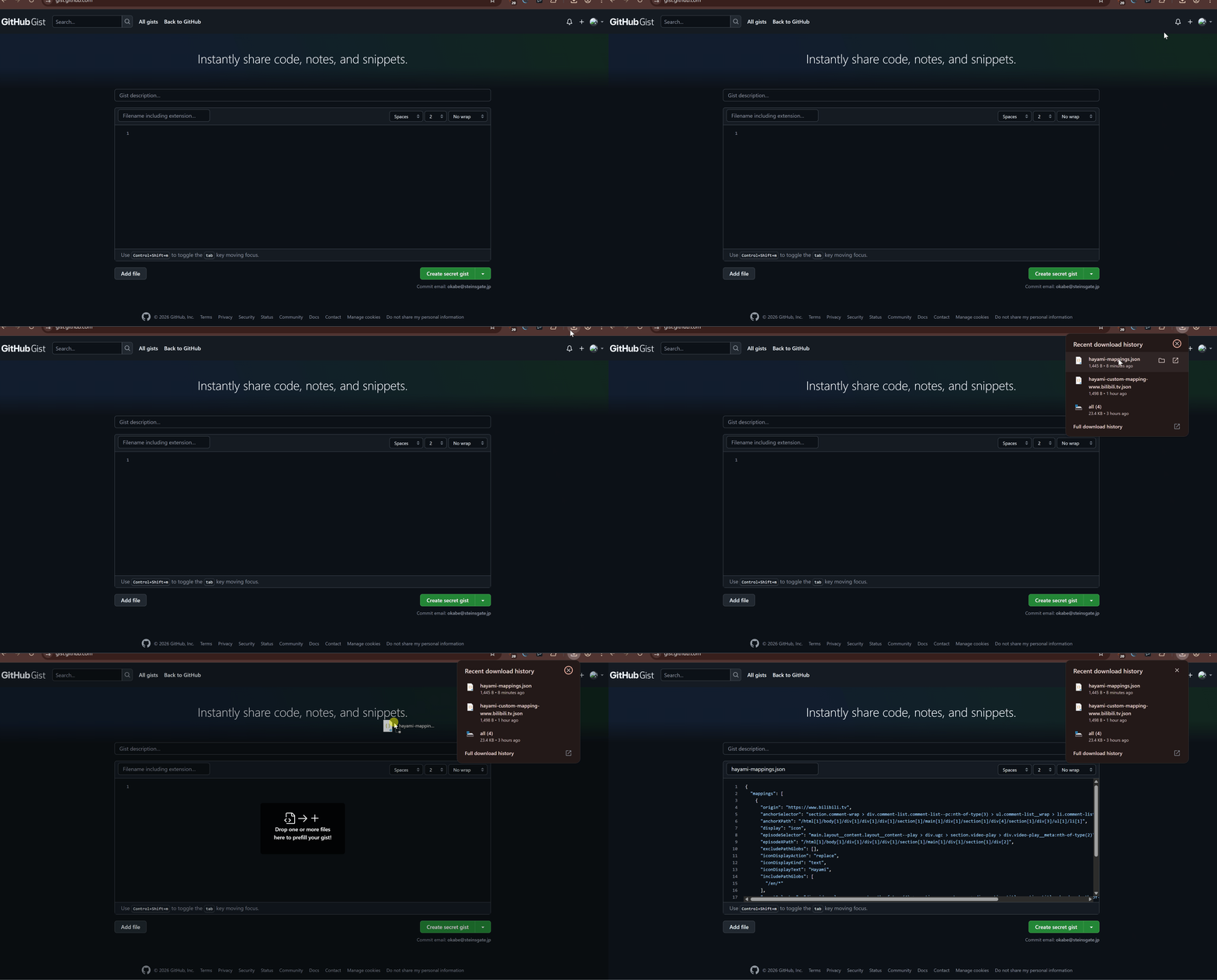
Click 'Raw' to get the URL to share with others, then change out the URL slightly.